Lobby Modes: Run Each Front Desk Unattended, Assisted or Receptionist-Led
A head-office reception with a full-time receptionist and an unstaffed satellite unit shouldn't run their front desks the same way. With lobby modes, they don't have to.
Three ways to run a lobby
Each location can now be set to one of three lobby modes:
- Unattended — pure self-service. Visitors check themselves in at the kiosk with no staff involved. Ideal for a small site or an out-of-hours entrance.
- Assisted — visitors can start their own check-in, but a receptionist is in the loop to help and confirm. The best of both for a busy reception.
- Receptionist-only — no self-service at all. Every visitor is signed in by a staff member. Right for high-security or high-touch lobbies.
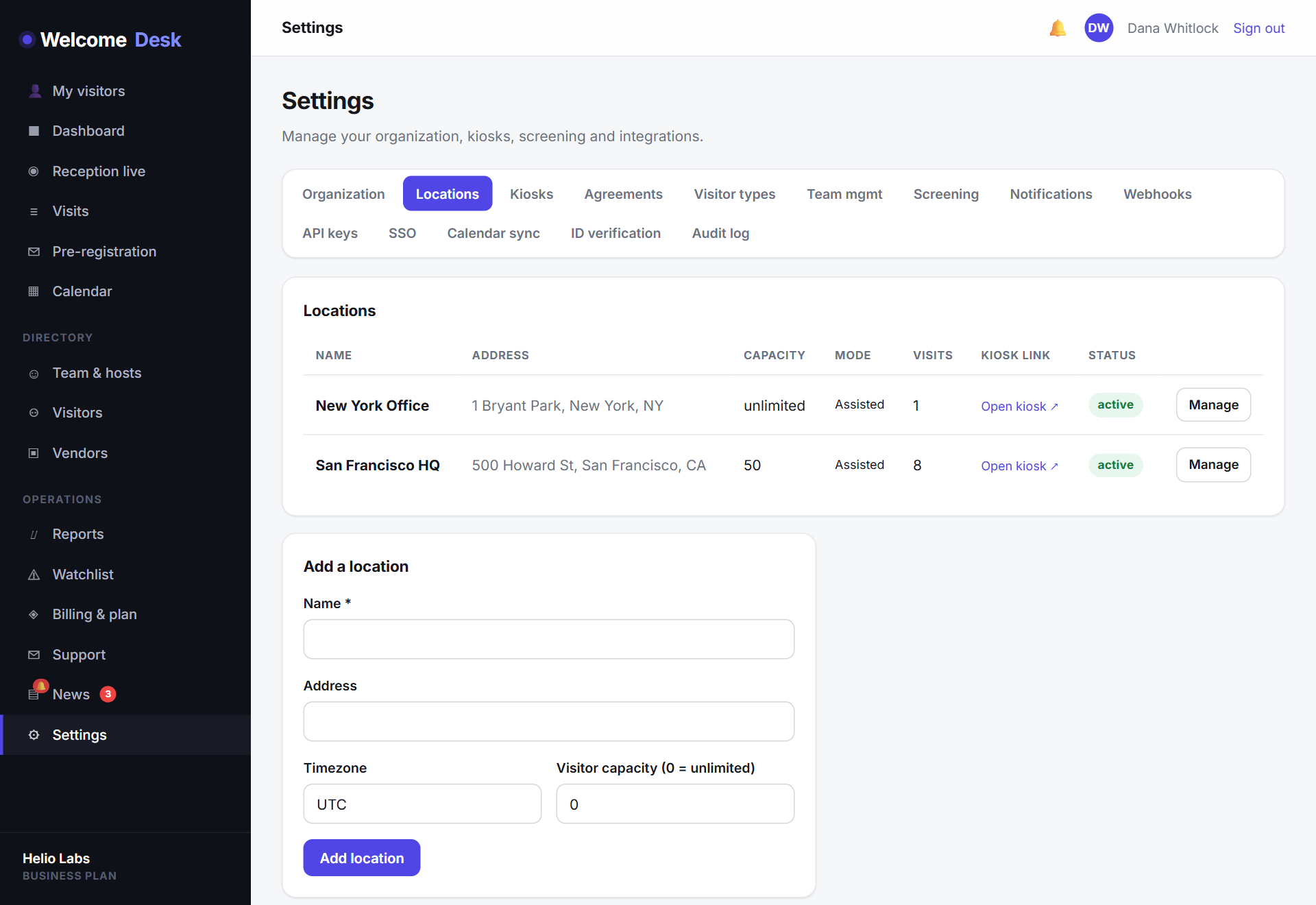
The mode is set per location, so a multi-site organisation can mix all three across its offices from one account.
The kiosk respects the mode
This isn't just a label. The setting actually gates the kiosk: in receptionist-only mode the self-service form won't let a visitor sign themselves in, while assisted mode allows it with a receptionist's oversight. The front desk behaves the way you configured it, automatically.
A faster walk-in for staffed desks
For receptionist-led lobbies, the reception console gains a quick walk-in check-in form. When someone arrives without a pre-registration, a receptionist signs them in directly from the console in a few seconds — no need to walk them over to the kiosk tablet.
Set it from location settings
Open Settings → Locations, pick a location and choose its lobby mode. It takes one dropdown, applies immediately, and you can change it whenever a site's needs change — staffed during the day, unattended in the evening.
It's a deceptively big change: WelcomeDesk now adapts to how your building actually runs, instead of asking your building to adapt to the software.
See WelcomeDesk at your front desk
Browser-based visitor management, one price for every office. Free for 14 days.
Start your free trial